What Is a Swap File – Linux Windows Guide and How It Works
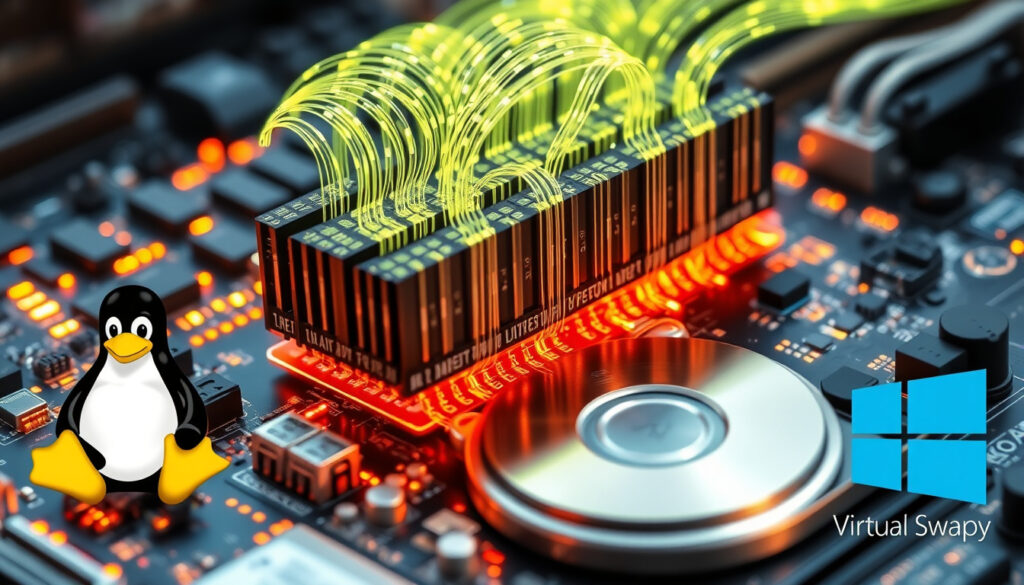
A swap file serves as a critical component of virtual memory systems, allowing computers to extend their available RAM by temporarily storing data on disk storage. When physical memory becomes full, the operating system moves less active information from RAM to this designated disk space, freeing up memory for active programs and processes.
This mechanism operates differently across operating systems. Linux systems typically use swap files or swap partitions stored within the filesystem, while Windows employs pagefile.sys for traditional applications and swapfile.sys for modern UWP apps. Both approaches share the same fundamental goal: preventing out-of-memory crashes while enabling systems to run more applications simultaneously than physical RAM would otherwise allow.
Understanding how swap files work helps users make informed decisions about memory management, system performance optimization, and storage configuration. Whether running a Linux server or a Windows desktop, familiarity with swap mechanics proves valuable for troubleshooting, performance tuning, and system administration tasks.
What Is a Swap File?
A swap file is a designated portion of disk space that the operating system uses as virtual memory when physical RAM reaches capacity. Unlike RAM, which provides fast, temporary data storage on silicon chips, a swap file resides on much slower disk storage—either traditional hard drives or solid-state drives. The operating system transparently moves data between RAM and the swap file as different applications and processes require memory resources.
Disk-based virtual RAM extension that temporarily stores inactive memory pages when physical memory fills.
Handling memory overflow by moving least-used data from RAM to disk, freeing space for active processes.
Linux uses swapon commands for swap files and partitions; Windows manages pagefile.sys and swapfile.sys automatically.
Significantly slower than physical RAM but essential for system stability when memory demands exceed hardware capacity.
Key Insights About Swap Files
- Swap files prevent out-of-memory crashes by providing emergency storage for memory overflow
- Hibernation functionality requires swap space at least equal to the system’s RAM size
- Linux swap files can be resized or deleted more easily than swap partitions
- Windows automatically manages pagefile.sys size based on available memory
- Swap usage indicates whether a system has adequate physical memory for its workload
- Constant swap activity on SSDs may contribute to wear over extended periods
| Aspect | Details |
|---|---|
| File Location | /swapfile (Linux) or pagefile.sys (Windows) |
| Typical Size | Equal to RAM or 1.5–2x RAM depending on use case |
| Page Size | 4KB standard memory pages managed by the kernel |
| Primary Risks | SSD write wear, fragmentation, performance degradation |
Swap File vs. Swap Partition: Key Differences
Linux systems offer two primary options for implementing swap space: dedicated swap partitions and swap files. Each approach carries distinct characteristics that influence performance, flexibility, and administration workflows.
Understanding Swap Partitions
A swap partition occupies a dedicated section of disk storage, formatted specifically for swap operations. This contiguous block of space typically resides at the beginning or end of a disk drive and remains separate from filesystem structures. Partitions offer consistent performance because data blocks remain physically adjacent, reducing seek times during swap operations. However, resizing a swap partition requires repartitioning the entire disk—a disruptive process that may necessitate data backup and restoration.
Understanding Swap Files
A swap file exists as a regular file within the filesystem, subject to the same storage mechanisms as other files. This approach provides considerably more flexibility since administrators can create, resize, or delete swap files using standard commands without modifying disk partitioning schemes. The tradeoff involves potential performance variations due to filesystem overhead and possible fragmentation as the swap file grows and shrinks over time.
While swap partitions theoretically offer faster I/O operations due to contiguity, modern filesystems and SSDs have narrowed this performance gap significantly. For most desktop and server workloads, the flexibility advantage of swap files outweighs marginal speed differences.
| Aspect | Linux Swap Partition | Linux Swap File | Windows pagefile.sys | Windows swapfile.sys |
|---|---|---|---|---|
| Location | Dedicated disk partition | File in root filesystem | System drive root (hidden) | Separate file for UWP apps |
| Resizing | Difficult; requires repartitioning | Easy via system commands | Adjustable via system settings | System-managed; not user-editable |
| Type | Permanent, contiguous | Permanent or temporary | Permanent, contiguous | App-specific, small |
| Performance | Fewer I/O operations when contiguous | Flexible; may fragment over time | Faster reads when contiguous | Efficient for modern applications |
How Does a Swap File Work?
The operating system divides physical RAM into fixed-size units called pages, typically 4KB in size. When running multiple applications simultaneously, the kernel tracks which memory pages remain actively used and which have sat idle for extended periods. When RAM fills completely, the kernel moves these least-recently-used pages to the swap file on disk, freeing up valuable RAM slots for new data requiring immediate access.
The Paging Mechanism
Both Linux and Windows use similar underlying concepts despite terminology differences. Linux administrators refer to this process as “swapping,” while Windows documentation describes it as “paging.” The NT kernel manages page tables tracking where each piece of data currently resides—whether in physical RAM or on disk within the pagefile. When an application later accesses data that has been moved to swap, the kernel must retrieve those pages back into RAM, potentially displacing other data in the process. This movement between RAM and disk introduces latency, making swap access noticeably slower than direct memory operations.
Swappiness and Usage Frequency
Linux systems include a swappiness parameter controlling how aggressively the kernel moves data to swap. This value ranges from 0 to 100, with most distributions defaulting to 60. Higher values cause the system to swap more readily, even when RAM isn’t completely full, while lower values preserve RAM for active data. Servers running database workloads often benefit from low swappiness values, whereas desktop systems might use higher values to improve application responsiveness. Windows manages this behavior automatically without direct user configuration.
Swap files remain hidden by default on both platforms and dynamically change size as the system operates, even when overall system stability appears unchanged. Users should not be alarmed by fluctuating swap file sizes—this indicates normal, healthy virtual memory operation.
How to Create and Manage a Swap File in Linux
Creating a swap file in Linux involves several straightforward command-line operations. System administrators typically perform these tasks during initial system setup or when expanding available virtual memory to accommodate new workloads. The process remains consistent across most Debian, Ubuntu, Fedora, and Arch-based distributions.
Creating a New Swap File
Before creating swap space, verify whether swap already exists using the free -h command to display current memory and swap utilization, or swapon --show to list active swap devices specifically. If additional swap is needed, create a new file using the fallocate utility—for example, sudo fallocate -l 4G /swapfile creates a 4GB swap file. Secure the file with restrictive permissions using sudo chmod 600 /swapfile to prevent unauthorized access, then format it for swap use with sudo mkswap /swapfile and enable it immediately with sudo swapon /swapfile.
Making Swap Permanent
The swap file activation from the previous step only persists until the next reboot. To make the configuration permanent, add an entry to the /etc/fstab file. Insert the line /swapfile none swap sw 0 0 using a text editor with root privileges. This ensures the system automatically enables the swap file during each boot sequence.
Disabling or deleting swap while insufficient RAM exists risks system instability, application crashes, and potential data loss. Always verify adequate physical memory before modifying swap configuration.
Increasing or Removing Swap
To increase swap file size, first disable it with sudo swapoff /swapfile, then resize the underlying file using fallocate with the desired new size, reformat it with mkswap, and finally reactivate it with swapon. For complete swap removal, disable all swap with sudo swapoff -a, remove the swap entry from /etc/fstab, and delete the file with sudo rm /swapfile.
Managing Swap in Windows
Windows manages virtual memory automatically through the pagefile.sys mechanism, requiring minimal user intervention for most use cases. The system adjusts pagefile size dynamically based on available memory pressure, though advanced users can customize settings through system properties. Access these options by opening System Properties, navigating to the Advanced tab, clicking Settings under Performance, selecting the Advanced tab again, and finally choosing Change under Virtual Memory.
Custom Pagefile Sizing
For users preferring manual configuration, Microsoft’s guidance suggests setting the minimum pagefile size to 1.5 times the installed RAM and the maximum to 4 times the RAM. For instance, a system with 16GB RAM would have a minimum of 24GB and maximum of 64GB allocated to the pagefile. These generous sizes accommodate memory dumps and ensure sufficient virtual memory headroom for demanding applications. For a deeper understanding of swap files and their functionality, you can refer to our Amazfit T-Rex 3 review.
Moving or Disabling the Pagefile
Users can move the pagefile to a different drive by selecting the target drive, choosing “Custom size,” entering desired values, and clicking Set. Selecting “No paging file” and clicking Set disables virtual memory entirely—a configuration that saves disk space but risks system instability if applications exhaust physical memory. Changes require system restart to take effect.
IT administrators managing virtual machine environments should note that excluding pagefile.sys and hiberfil.sys from backup operations significantly reduces backup file sizes and transfer times, as documented by backup solution providers.
Pros, Cons, and Best Practices for Swap Files
Swap files provide essential functionality for system stability but introduce performance tradeoffs that users should understand when configuring virtual memory settings. Evaluating these factors helps administrators optimize configurations for specific workloads and hardware capabilities.
Advantages of Using Swap
Swap space prevents out-of-memory crashes that would otherwise terminate applications or halt the system entirely. It enables systems to run more concurrent applications than physical RAM could support independently. Hibernation functionality—the ability to save complete system state and resume later—requires swap space at least equal to the installed RAM. Additionally, swap provides a safety net during unexpected memory spikes from application bugs or temporary workloads exceeding normal expectations.
Disadvantages and SSD Considerations
The primary drawback involves performance degradation since disk operations run considerably slower than RAM access. On solid-state drives, frequent swap activity contributes to write wear, gradually degrading memory cells over years of heavy use. Strategies to mitigate this include reducing swappiness to minimize unnecessary swap operations and ensuring adequate physical RAM for expected workloads. Fragmentation can also slow swap performance as the file grows and shrinks over time, though modern SSDs experience less impact from fragmentation than traditional hard drives.
For systems with limited RAM (under 8GB) running memory-intensive applications, swap provides stability benefits that outweigh moderate SSD wear. However, users with 32GB or more RAM and typical productivity workloads may find minimal swap necessary and can configure smaller sizes or rely entirely on physical memory.
Recommended Sizing Guidelines
- Typical desktop systems: 1–2x RAM size provides adequate headroom
- Hibernation requirement: Equal to or greater than installed RAM
- Low-memory systems: Minimum 2–4GB swap regardless of RAM size
- Servers with ample RAM: Smaller swap (4–8GB) for emergency use only
- Systems with limited RAM (under 8GB): Overprovision swap to prevent instability
Monitoring actual swap usage helps determine appropriate sizing. Linux users can check utilization with free -h, while Windows users access Task Manager’s Performance tab. The goal involves configuring swap large enough to prevent out-of-memory conditions while keeping actual swap activity minimal through adequate RAM provisioning.
For systems with traditional hard disk drives, placing swap on a separate physical drive from the system drive improves performance by enabling parallel I/O operations. On SSDs, this separation provides less benefit due to similar access times across all drive locations, though keeping swap separate from heavily-used filesystem areas remains advisable.
The Evolution of Virtual Memory: A Historical Timeline
Virtual memory concepts emerged in computing’s early decades, with implementation approaches evolving significantly as hardware capabilities and operating system sophistication increased. Understanding this history provides context for current swap mechanisms and their continued importance in modern computing.
- 1970s: Early virtual memory concepts developed for mainframe systems, introducing the fundamental idea of treating disk as an extension of limited physical memory
- 1980s: Demand paging became standard in consumer operating systems as personal computers gained multitasking capabilities
- 1990s: Linux kernel introduced swap partition support, establishing the foundation for modern Unix-like virtual memory systems
- Early 2000s: Windows pagefile.sys became standardized across consumer versions, with automated sizing replacing manual configuration
- 2008: Windows Vista and 7 introduced memory compression and other optimizations alongside traditional pagefile mechanisms
- 2010s: Kernel improvements addressed SSD-specific concerns including TRIM support and reduced swap write amplification
- Windows 8 (2012): Introduction of swapfile.sys specifically for UWP and Store applications, separating modern app memory from traditional system paging
- Present: Continued refinement of swap algorithms with focus on minimizing SSD wear and optimizing for ever-increasing RAM capacities
What We Know vs. What Remains Uncertain
The computing community has established clear consensus on many swap file behaviors while remaining uncertain about optimal configurations for specific scenarios. Distinguishing between confirmed facts and workload-dependent recommendations helps users make informed decisions.
| Established Information | Information That Varies |
|---|---|
| Swap extends RAM capacity by using disk space for inactive memory pages | Optimal size depends entirely on specific workload characteristics |
| Swap operations are significantly slower than RAM access due to disk I/O latency | Impact of swap on application responsiveness varies by software design |
| Linux swap files can be resized dynamically while partitions require repartitioning | Actual SSD wear from swap activity depends on specific drive quality and usage patterns |
| Hibernation requires swap space at least equal to physical RAM | Minimum viable swap for modern systems with abundant RAM remains debated |
Understanding Swap in Context: The Bigger Picture
Virtual memory through swap files represents one component within a broader memory management ecosystem. The operating system’s memory manager balances multiple competing priorities: maximizing performance for active applications, maintaining stability during memory pressure, and efficiently utilizing available hardware resources. Swap exists as a fallback mechanism when physical memory proves insufficient for current demands.
Modern operating systems employ increasingly sophisticated strategies for managing memory hierarchy, including transparent compression (Windows Memory Compression, zram on Linux), intelligent prefetching, and application-specific memory optimization. These techniques reduce reliance on swap while maintaining system responsiveness. However, swap remains essential as a safety mechanism—the last line of defense against out-of-memory conditions that would otherwise crash applications or require forced system restarts.
For most users, the practical takeaway involves ensuring adequate physical RAM for intended workloads and configuring swap as insurance against unexpected memory demands. Power users and system administrators may benefit from deeper understanding of swap mechanics for performance tuning and troubleshooting purposes.
Official Documentation and Technical References
“Swap is slower than RAM but vital for system stability when memory demands exceed physical capacity.”
— Kernel.org Documentation
The Linux kernel documentation provides authoritative information on swap implementation details, including administrative procedures and configuration recommendations. Microsoft’s virtual memory configuration guide offers comparable guidance for Windows environments.
The swapon man page documents command-line options for managing swap devices and files on Linux systems. Arch Linux’s swap wiki page provides community-vetted best practices accumulated from extensive user experience across diverse hardware configurations.
Summary: Key Takeaways About Swap Files
Swap files serve as essential virtual memory extensions, allowing operating systems to handle workloads exceeding available physical RAM. Linux systems offer both swap files and swap partitions, with files providing greater flexibility through easy resizing and partitions offering potentially superior performance through contiguity. Windows implements similar functionality through pagefile.sys and swapfile.sys, managing virtual memory automatically for most users.
Best practices include provisioning swap sized between 1–2x RAM for typical systems, increasing this to match RAM if hibernation is required, and prioritizing RAM upgrades when swap usage becomes frequent. For iPhone Air 17 and similar modern devices, manufacturers handle swap transparently within their integrated memory management systems. Desktop and server users benefit from understanding these underlying mechanisms to optimize system performance and stability.
Frequently Asked Questions
What happens if my swap file becomes full?
When swap space fills completely, the system faces out-of-memory conditions. Applications may crash, the kernel might terminate processes automatically, or the system could become unresponsive. Adding more RAM or expanding swap size typically resolves this situation.
Does macOS use swap files like Windows and Linux?
Yes, macOS implements virtual memory using swap files stored in /private/var/vm/. The system manages these automatically without user configuration, combining page files as memory pressure requires.
Are there security concerns with swap files?
Sensitive data from RAM (passwords, encryption keys, decrypted content) may be written to swap, potentially accessible to anyone with disk access. Linux users concerned about this risk can encrypt swap partitions or use hibernation file encryption.
How do I check if my system is using too much swap?
Linux users can run free -h or htop to view swap usage. Windows users access Task Manager’s Performance tab. Frequent swap activity during normal operation indicates insufficient RAM for your workload.
Can I have multiple swap files or partitions?
Yes, Linux supports multiple swap devices and files. They can be prioritized using the swapon command with priority flags. Windows typically uses a single system-wide pagefile though it can span multiple drives.
Should I disable swap if I have plenty of RAM?
Disabling swap eliminates emergency memory capacity and breaks hibernation. Even with abundant RAM, keeping at least a small swap file (4–8GB) provides safety margin and enables hibernation without significant downsides.
Why does Windows have both pagefile.sys and swapfile.sys?
Windows 8 introduced swapfile.sys specifically for UWP (Universal Windows Platform) applications from the Microsoft Store. This separation improves efficiency for modern apps and keeps traditional pagefile sizes more predictable.
More related posts
 The Unholy Trinity: Review, Cast, Box Office & Where to Watch
 Sarah Jones: Who Are the Different Sarah Joneses? (Guide)
 Sunday Rose Kidman-Urban: Age, Modeling, Parents’ Split
 Top Programming Tutorials: Best Free Resources to Learn Coding
 Best Robot Vacuum Australia – Top Tested Picks 2024
 Bella Ramsey: Autism, Gender, Gordon Ramsay Rumors & More
 Toy Story 2: 1999 Release Date, Plot, Where to Watch
 Nina Drama: Who Is She, Age, Husband, and UFC Fame
